Off guides
Off Help
Setting up the helper, finding your computers and fixing common problems.
- Getting started
- Waking your computer
- Shortcuts and widgets
- Troubleshooting
- Mac
- Windows
- Purchases and support
Getting started
How do I setup Off to control my computer?
Before you're ready to use Off you need to install the Off Helper application on any PCs or Macs you want to control. It's available for PC and Mac. The Helper application requires no additional configuration. Once it's installed it should appear in the taskbar and launch automatically every time you start your computer. You then just need to have the Off app open and connected to the same local network as your computer. Once it's found your computer, you can control your computer from anywhere on the internet.
If you would prefer to not have to install the helper, some limited functionality is available without it. See the section 'Do I have to install the Off Helper app?'
How do I use the app?
First setup the app as per the instructions in 'How do I setup Off to control my computer?'. Then, whenever you start the app you will be presented with a list of all your computers. Simply, swipe left or right to find the computer you want to interact with and select the button corresponding to the action you would like to perform. The app refreshes automatically every time there's a change to your computer(s).
Do I have to install the Off Helper app?
Off is still able to wake PCs if you wish to use it without installing the Helper app. However, only the wake functionality will be available and waking computers remotely will be problematic unless your ISP can give you a static IP address. It's highly recommended that you install the Helper app to make setup easier and have access to all the app's functionality. However, if you wish to set up a computer manually go into Settings and select 'Manually Add Computer' where you'll need to provide the MAC address of your computer.
Can Off control my iPhone or iPad?
No. Unfortunately, it isn't possible to control iPhones or iPads. Any app that could do this wouldn't be allowed in the Apple App Store.
Does Off work over the internet?
Off can control your computers over the internet. To enable this all you need to do is have the phone connect to your computer once over your local network. If you've password protected Off on your computer make sure you've entered this password on your phone at least once.
Note that Wake commands work completely differently to all other commands. All the other commands generally work out-of-the-box but waking will usually require some additional configuration. Read the corresponding FAQ questions for more info.
How do I set a password?
If you wish to prevent other people with access to your local network from being able to control your computers with Off, you can set a password on your computer. To do this, right-click on the icon in the taskbar/status bar on your computer and select ‘Set Password...’. Enter the password you would like to use and click ‘Set Password’ (‘Save Password’ on a Mac). Next time you select that computer from your phone you will be prompted for this password. If you would like to delete a password you can select ‘Set Password...’ again and click ‘Delete Password’ (‘Remove Password’ on a Mac).
Waking your computer
How do I wake up a PC on my local network?
Off wakes up PCs using a networking standard known as Wake-on-LAN (WoL), which is supported by all modern wired ethernet adapters. Your computer may need some settings to be adjusted on it before it's ready to accept a request to wake.
Step by step instructions for configuring your computer can be found here
How do I wake my PC over the internet?
Off can wake up your PC over the internet but some configuration of your router is likely to be necessary first. Step by step instructions can be found here
If you enable port forwarding on your router it's recommended that you set a password in the Off Helper.
How do I wake up a Mac?
Off is able to wake your Mac only if it is connected to the power adapter and it is currently sleeping. It's not possible to wake it if it is turned off. The default power settings on a Mac should allow Off to wake your computer but if you find that the Off app isn't seeing your computer when it's sleeping open your Mac's System Settings. On a MacBook, click 'Battery', then 'Options…', and make sure 'Wake for network access' isn't set to 'Never'. On a desktop Mac, click 'Energy' and make sure 'Wake for network access' is turned on.
Note that if you're using any kind of dongle peripheral to access the internet this can cause issues with waking your Mac, as it's likely to be powered down when the Mac sleeps. Although the other commands will work as expected you will need to have your Mac connected via its built-in WiFi adapter or ethernet port for waking to function reliably.
If you want to be able to wake your Mac when you're not connected to the same local network as it then some additional configuration may be required.
Before you try this make sure you've confirmed you're able to wake your Mac on your local network.
By default, the Off Helper will automatically try to setup port forwarding on your router using NAT-PMP. It's therefore worthwhile to check if this was successful by turning off wifi on your phone and attempting to wake your Mac. If it's not working, but it works locally, then read on.
If you're still reading it's not worked and you're going to need to make some changes in your router's settings. NAT-PMP is turned off by default on many routers. Log into your router's admin panel and find the setting for NAT-PMP (on some routers it's part of the UPnP setting) and turn it on if it's not on already. If it was turned off, to trigger the port forwarding you'll need to either restart the Off Helper or toggle Auto Map Ports off and then on again.
If that didn't work, or you'd prefer to configure it manually, then read on.
The specific steps will depend on your router. In a nutshell, log into your router's admin panel and find the settings on port forwarding. Forward port 1984 to the IP address of your computer, for both TCP and UDP. You may also find it useful to assign your computer a static IP address on your network in case it changes and you're no longer forwarding to the correct address.
You can check if your port is forwarded correctly by using this tool.
You can find detailed instructions on how to set up port forwarding on your particular router here. There's also information on configuring port forwarding in our WoL Guide (Ignore the part about forwarding port 9. You need to forward port 1984).
If your port forwarding rule looks correct but the port checker still reports the port as closed or filtered, your ISP may have you behind Carrier-Grade NAT (CGNAT), which blocks incoming connections before they reach your router. See this section of our WoL Guide for how to check for it and how to resolve it.
If you enable port forwarding on your router it's recommended that you set a password in the Off Helper.
If your computer is connected to the internet via a VPN there's an additional step required in the app in order to wake it. The app requires your real public IP address to wake up your computer over the internet. If your computer is connected to a VPN, the IP address it detects will be that of your VPN. You can find your real IP address if you disconnect from your VPN and go to whatismyipaddress.com. In the app, on the Computer Details screen, find the Public IP Override field and enter this IP address. Note that this IP may change from time to time so you may need to update it in the future.
If you were expecting to use WoL to wake your Mac, although Apple computers do technically support the same WoL standard as Windows, the usefulness of WoL has been superseded by the standard macOS power management features. Technologies such as Dark Wake leave the networking aspect of your computer powered up for it to be able to automatically wake up other parts of the system if, for example, something tried to access a hard drive on it. If you want to use WoL on your Mac you'll need to disable these features, which is not recommended.
Shortcuts and widgets
How do I set a recurring schedule to wake or shutdown my computer?
Within the app, you're able to schedule Off to perform a shutdown etc. at any time within the next 24 hours. If you want to create a repeated schedule then the best way to do this is using Shortcuts. See the Shortcuts guide for more details.
How do I add a widget for Off?
Off includes its own Widgets for displaying your computer's current state and battery life. If you're not sure how to add Widgets to your phone then take a look at Apple's Guide. If you want a Widget that can trigger actions on your computer then you can create one using Shortcuts. Watch this video to see how.
How do I create a Shortcut?
Off has extensive support for Shortcuts and Siri. See the Shortcuts guide for more details or watch these videos.
How do I add a button on my phone's home screen to shut down my computer?
Using the app's support for Shortcuts it's possible to make a button that you can place on your home screen that will trigger your computer to shut down, restart, wake up etc. Watch this video to see how.
Troubleshooting
Why can't the Off app find my computer?
If you're having problems discovering your computer try the following:
- Check the Off Helper is running on your computer (it will be visible in the system tray).
- On Windows, check that your network is set to Private. Off is only allowed through Windows Firewall on private networks. Open Settings, go to 'Network & internet', open your Wi-Fi or Ethernet connection's properties and set its network profile type to 'Private network'.
- Make sure you've got the latest version of the helper application installed on your PC or Mac.
- Make sure you're on the same local wifi network as the computer.
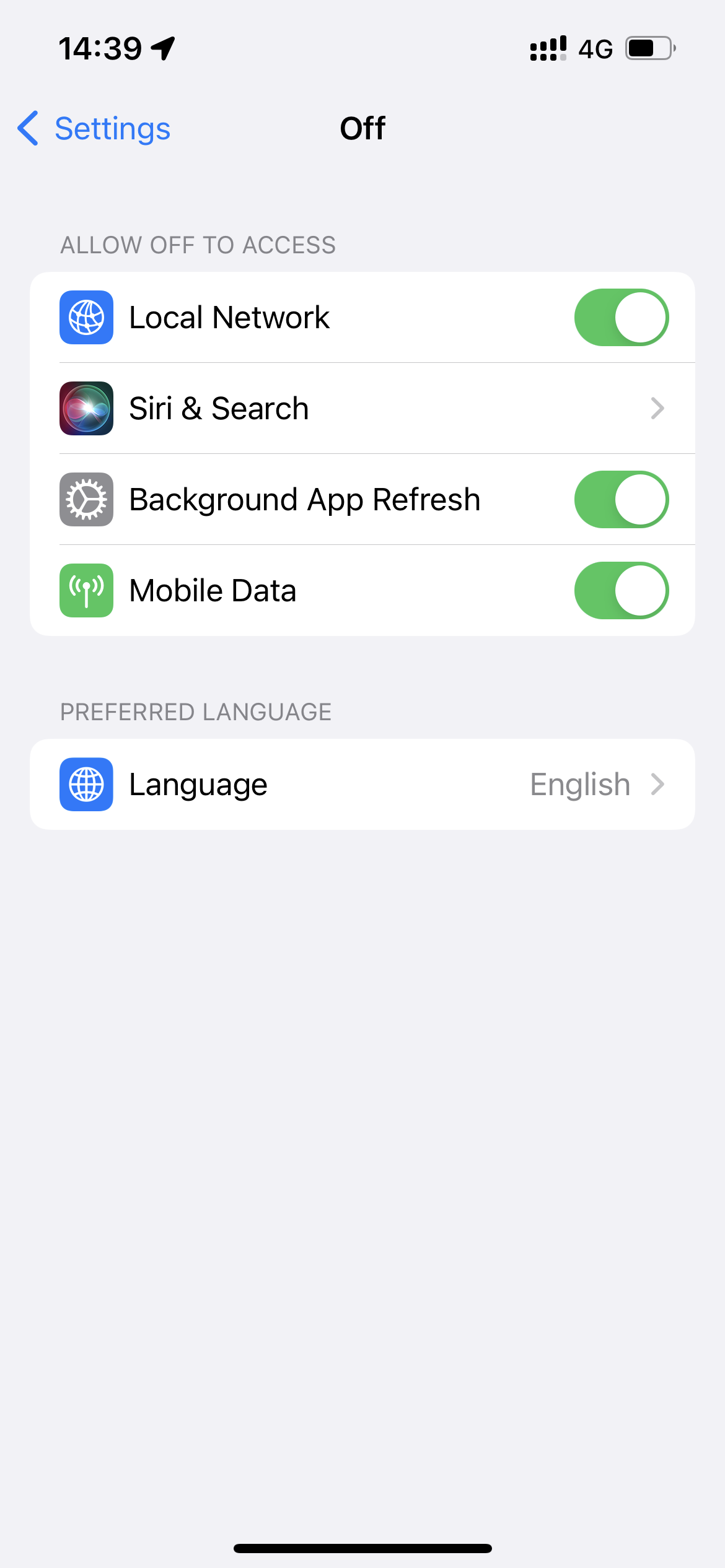
- Check that the Off app has been granted access to your 'Local Network' by going into your phone's 'Settings', finding the Off app and ensuring the 'Local Network' switch is turned on.
If you are still unable to find your computer after trying these steps then you can link the computer using the alternative method of scanning a QR code.
How do I grant the Off app Local Network access?
The first time Off is opened iOS should prompt you to grant Off access to find and connect to devices on your local network. If this wasn't accepted, Off won't be able to find your computer or perform any commands on it until you enable this permission manually in your iOS device's Settings.
- On your iOS device, open the Settings
- Scroll down the list until you find Off
- Turn on the toggle for Local Network access
How do I fix the "Unable to connect to Computer" error message when triggering commands?
If the Off app has found your computer but when you try to trigger it to shutdown etc. you see an error saying "Unable to connect to computer" this normally means that there's an issue with your firewall. On Windows, the Off installer allows Off through Windows Firewall on private networks, so check that your network is set to Private (see 'Why can't the Off app find my computer?'). If you use a different firewall, make sure it allows the Off Helper app to accept incoming connections. On a Mac, if the firewall is on, open System Settings, click 'Network', then 'Firewall', then 'Options…', and check that incoming connections are allowed for Off Helper. If your firewall is configured correctly and you're still experiencing the same error, check that in your phone's Settings, Off has got the Local Network access toggle turned on.
Mac
How do I fix the "Off Helper needs Accessibility permission granted in macOS Preferences" error?
The first time you trigger a media control with Off your mac will prompt you to grant Off Accessibility access. It should just be a case of accepting this prompt. If you didn't see the prompt or you're receiving this error when trying to trigger a command then follow these steps:
- Open your Mac's 'System Settings'
- Click 'Privacy & Security'
- Click 'Accessibility'
- Look for 'Off Helper' in the list of apps with Accessibility access
- Turn on the switch next to it
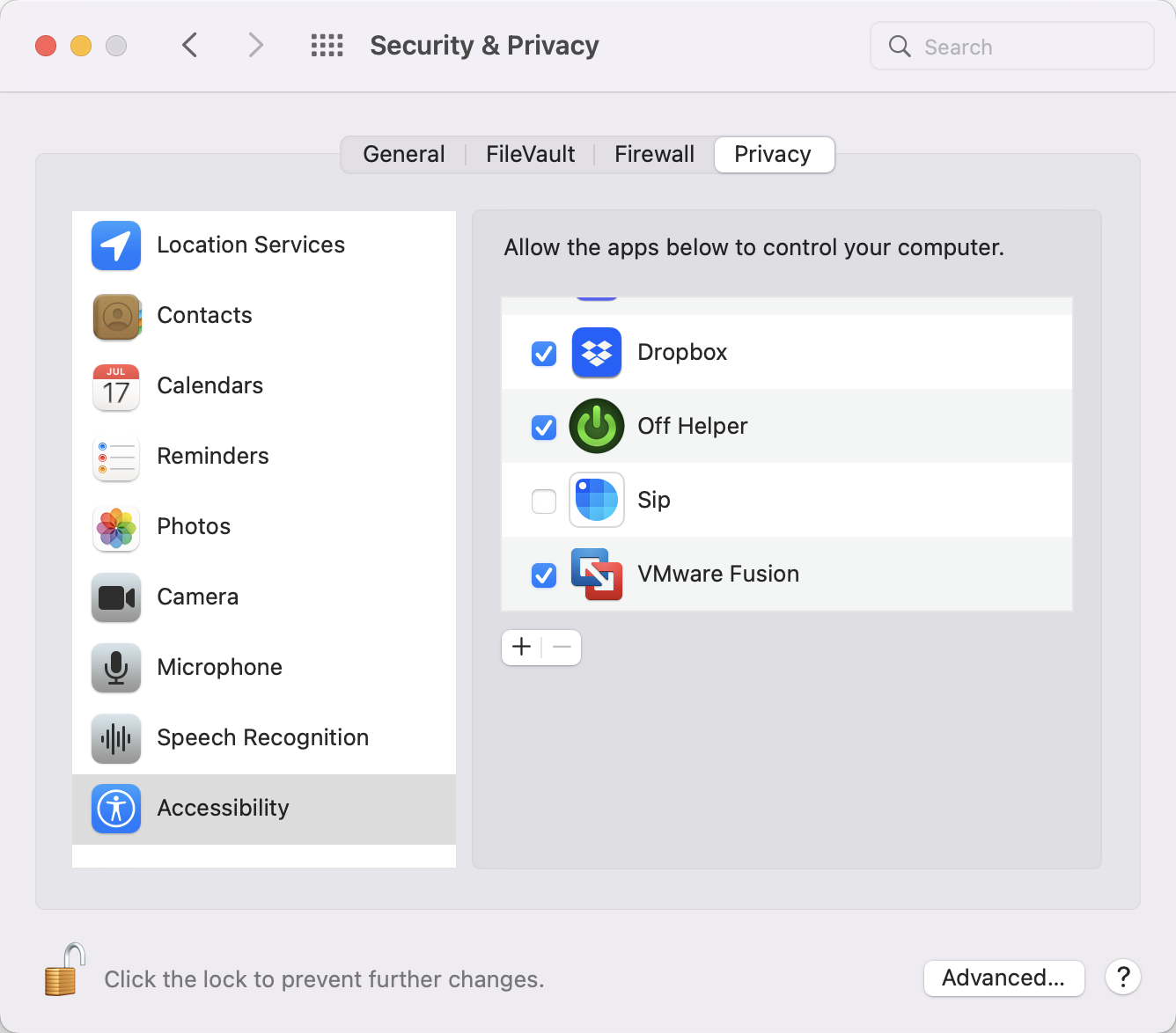
If after following the above steps you're still experiencing issues then you may need to reset permissions due to a bug in macOS. Perform the above steps and then the additional steps below:
- Look for 'Off Helper' in the list of apps with Accessibility access
- Press the minus button to delete it
- Attempt to perform the action from your phone again
- Your Mac should prompt you if you want to allow the Off Helper access to control your computer
- Allow Access
If problems still persist after this you can reset all permissions for the Off Helper by opening Terminal and executing the command 'tccutil reset all com.bridgetech.Off-Server'.
How do I fix the "Off Helper needs System Events permission granted in macOS Preferences" error?
The first time you trigger a power command on your mac with Off your mac will prompt you to grant Off System Events access. It should just be a case of accepting this prompt. If you didn't see the prompt or you're receiving this error when trying to trigger a command then follow these steps:
- Open your Mac's 'System Settings'
- Click 'Privacy & Security'
- Click 'Automation'
- Look for 'Off Helper' in the list of apps with Automation access
- Turn on the 'System Events' switch under it
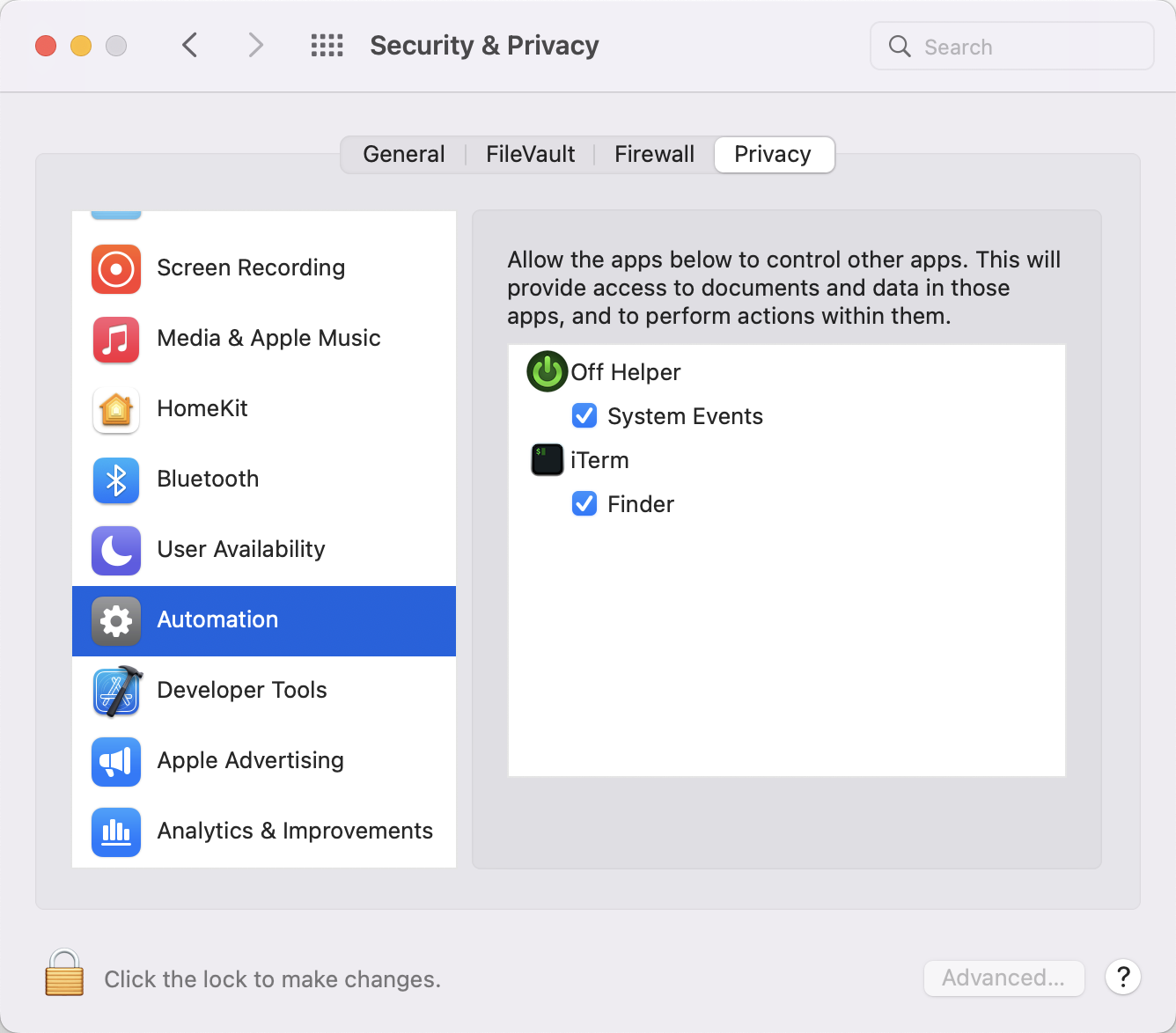
If after following the above steps you're still experiencing issues then you may need to reset permissions due to a bug in macOS. Perform the above steps and then the additional steps below:
- Look for 'Off Helper' in the list of apps with Automation access
- Press the minus button to delete it
- Attempt to perform the action from your phone again
- Your Mac should prompt you if you want to allow the Off Helper access to control your computer
- Allow Access
If problems still persist after this you can reset all permissions for the Off Helper by opening Terminal and executing the command 'tccutil reset all com.bridgetech.Off-Server'.
Can Off control my Mac when multiple accounts are currently logged into it?
It's possible to perform most actions when multiple accounts are logged into your Mac. However, shutting down or restarting your Mac causes an administrator password prompt to be shown, which Off can't get around at present.
What versions of macOS does Off support?
The Off Helper supports macOS 13 Ventura and later. If you need to install it on an older Mac, a legacy version of Off for macOS can be downloaded here. Note: this version is unsupported and doesn't offer the full range of features.
Windows
How do I use Off without logging into my PC?
The Off helper does its best to launch prior to login and most of its features work without the PC being logged in. However, due to restrictions on what access applications are able to do without a logged in user session, some features are not available until the initial user login has taken place. This mostly affects Off's status reporting feature. To work around this issue, if you're able to trust that your computer is safe from unwanted physical access, it's recommended that you enable auto login. Instructions for enabling auto login can be found here.
Can the Off Helper app run as a Service on Windows?
Not really. Services aren't allowed to interact with the UI, which would limit Off's functionality.
Does Off need Bonjour to be installed?
No. Since version 2.16, the Off Helper for Windows finds your computer on your local network without Bonjour, so there's nothing extra to install. Macs have Bonjour built in. If you're using an older version of the Off Helper on Windows that asks for Bonjour, update it to the latest version from the Off page.
What version of Windows does Off support?
Off supports Windows 10 and later.
Why is Windows Defender warning me about installing the Off Helper?
Occasionally Windows Defender decides that Off is bad. There doesn't seem to be any particular pattern to this; some machines will get this warning and others won't. It is due to Windows Defender being overzealous about the app being new and unfamiliar to it. So long as you've downloaded the Off Helper directly from BridgeTech.io it is safe to ignore this warning.
Purchases and support
Can I purchase the app with a one off lifetime payment?
As well as the standard subscription options, it's possible to purchase Off with a single lifetime payment. To have this option available your subscription or trial will need to have expired. Once that's happened you'll find the lifetime purchase option on the Subscriptions screen in the More Options section.
How do I contact support?
You can contact support via email at support@bridgetech.io.